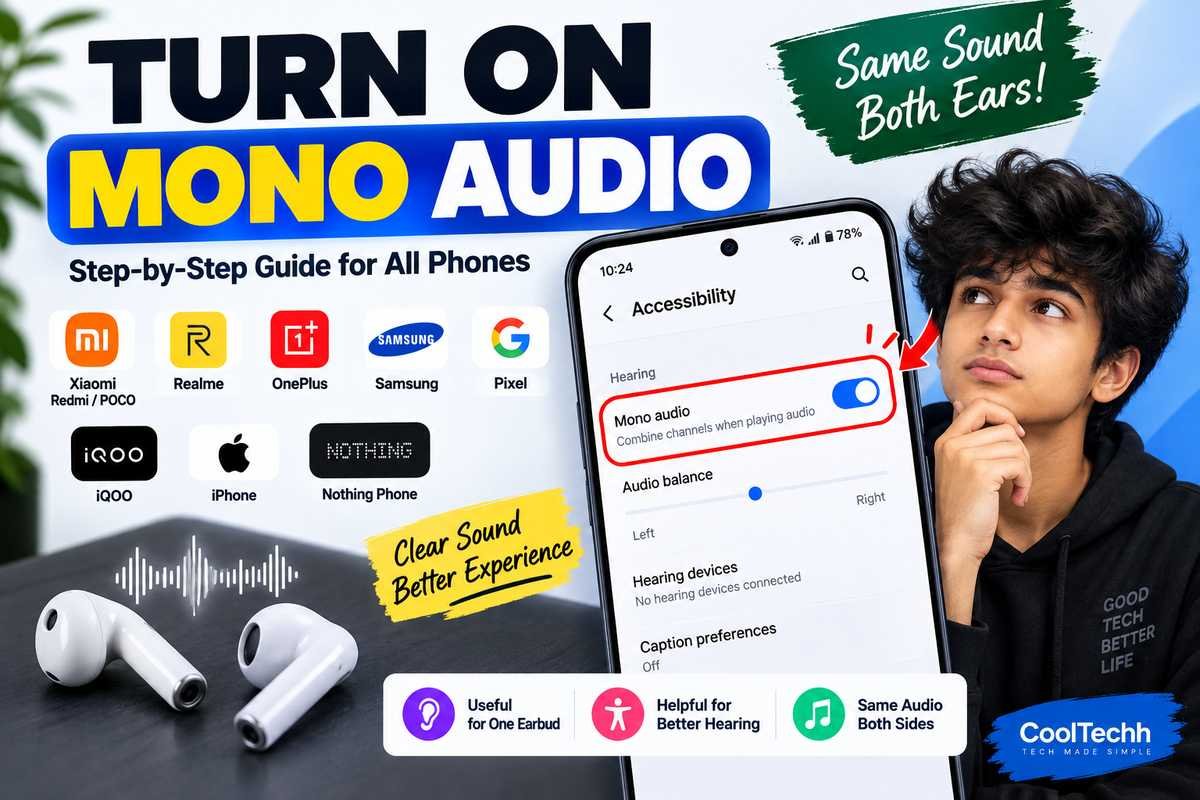
How to Enable Mono Audio on Android and iPhone
Do you ever notice that the sound coming out of your headphones sounds different on the left and right? Maybe one earbud is quieter, or you can only hear certain parts of a song from one side. Mono Audio can be useful in situations like these.
Mono Audio merges the left and right audio channels into a single channel. It doesn’t send different sounds to each side. It plays the same combined audio to both sides. This could be useful if you are using only one earbud or if you have trouble hearing audio on one side.
The good thing is, you usually don’t have to install another app for this. Mono Audio is an accessibility setting on both iPhone and Android phones.
The exact location of the option may differ slightly depending on the model of the phone, version of Android, or version of the software. These are the usual routes for popular phones.
What Is Mono Audio?
Stereo audio typically has two channels: left and right. Some music, videos and games use the two channels differently. You might, for instance, hear an instrument or sound effect more on one side, and then another sound on the other side.
Mono Audio mixes these channels so you get the same combined sound out of both sides.
For example, stereo audio could simply mean you’re missing out on sounds that were recorded mostly on the left channel if you’re only using your right earbud. With Mono Audio on, the two channels are blended together.
This doesn’t actually make your phone louder. Instead it alters how the audio channels are presented.
What’s the point of mono audio?
There are a few situations where Mono Audio can be useful.
If you use a single earbud, Mono Audio can help prevent you from missing audio that is usually assigned to the other channel.
It is also useful for those who have difficulty hearing from one ear. Both sides receive the combined audio, rather than each side having different audio information.
Another situation is when you are listening to content where you want to hear the same audio information from both sides.
But Mono Audio isn’t necessarily better for everyone. If you have two decent earphones and you like your music in stereo, then flipping the switch to Mono Audio will remove the left-right separation that the stereo gives you.
How to Enable Mono Audio on Xiaomi, Redmi and POCO
Xiaomi, Redmi and POCO phones may have the accessibility audio options in the additional settings or hearing section.
Try this route :
Settings → More Settings → Accessibility → Hearing → Mono audio
The wording or location may vary slightly depending on your phone and HyperOS/MIUI version.
If you cannot find the option go to Settings and search for mono audio.
Once you have located the setting, turn it on and play a video or music to hear the difference.
How to Enable Mono Audio on Realme
Realme phones also have Mono Audio under the accessibility settings.
Try this:
Settings → Accessibility → Hearing → Mono audio
On some versions of Realme software, the options related to audio may be worded differently e.g. Audio adjustment.
If you don’t see the setting you’re looking for, open Settings search and type Mono audio.
The exact menu may change after a Realme UI update, so don’t worry if your screen looks a little different than another Realme phone.
How to Enable Mono Audio on OnePlus
Accessibility settings are under different menu names on OnePlus phones depending on the OxygenOS version.
Attempt:
Settings > More settings / System settings > Accessibility > Hearing > Mono audio
When you reach the accessibility audio options, look for Mono audio and turn that on.
If your OnePlus phone has a different menu structure, look for the term within Settings.
Enable Mono Audio for Samsung
On Samsung Galaxy phones, Mono Audio is located in the accessibility settings under hearing enhancements.
Click here to:
Settings > Accessibility > Hearing enhancements > Mono audio
You can then toggle Mono audio on or off.
While Samsung could change the exact look of the menus from One UI version to One UI version, it’s usually easier just to search for Mono audio in Settings to find it.
If you’re a regular user of a single earbud, try enabling Mono Audio to see if it makes the audio easier to hear.
How to Enable Mono Audio on Google Pixel
On Google Pixel phones, you can find audio accessibility settings in the Accessibility section.
Try:
Settings → Accessibility → Hearing → Mono audio
Enable the option and try it on your headphones or phone speaker.
Depending on the version of Android installed on your Pixel, the name of the menu may change so it can also help to use the Settings search function.
How to enable mono audio on iQOO
Mono Audio can typically be found in the hearing accessibility options on iQOO phones.
Try these:
Settings > Accessibility > Hearing > Mono audio
The location may be different for different versions of Funtouch OS on your device.
If you don’t see it right away, look for Mono audio in the Settings app.
How to Enable Mono Audio on iPhone
iPhone also has a Mono Audio option built-in.
To locate it:
Settings → Accessibility → Audio & Visual → Mono Audio .
Enable Mono audio
You can then plug in your AirPods or other headphones and test the audio.
The iPhone also has other audio controls in the same area and you may see options for balance and other audio adjustments.
How to Enable Mono Audio in Nothing Phone
There is also Mono Audio in Accessibility settings for Nothing phones.
Try:
Settings → Accessibility → Audio → Mono audio.
Turn on the option and test your headphones.
The location may vary with Nothing OS updates, so if you can’t find it, the easiest option is to search Settings for Mono audio.
What does turning on Mono audio do?
With Mono Audio enabled, the left and right audio channels are combined.
This means that there is no usual separation of left and right channels. Instead, both sides of the recording contain the combined audio.
For instance, imagine you are listening to a video on wireless earbuds with one audio channel containing someone’s voice and another channel containing background music. The regular stereo audio you can divide these between your ears. Mono Audio unites them.
This can be especially useful when only a single earbud is being used.
Does mono make the volume louder?
No. Volume booster is not Mono audio.
It changes how the audio channels are mixed. If your phone or earphones are too quiet, turning on Mono Audio does not guarantee that they will get louder.
If you want louder sound, adjust the volume settings on your phone and the volume control on your headphones or earbuds.
Mono audio and stereo audio
Actually it is a simple difference.
Stereo Sound
Has left and right channels separately Gives a sense of direction and room Good for music, films & games Best if you use both sides of your headphones
Mono Sound:
Left and right channel mixes Plays the mixed audio from both sides. Good for single earbud use Can help not to miss audio from one channel.
Neither option is intrinsically superior in every situation. That depends on how you listen to audio.
How to Fix Mono Audio If You Can’t Find It
Don’t worry if the menu above doesn’t exactly match your phone.
Android manufacturers often change the names and locations of settings between software versions. A Xiaomi phone running one version of HyperOS may have a slightly different menu from another Xiaomi model. The same goes for Samsung, OnePlus, Realme, iQOO, Nothing and other brands.
The easiest fix is to go into Settings, and search for:
Mono
You can also try searching for Hearing, Audio or Accessibility
Summary
Mono Audio is a simple accessibility feature that is handy if you use one earbud, have trouble hearing audio out of one side, or just want the same mixed audio on both sides.
It’s located under Accessibility and an audio, hearing or hearing-enhancement section on most supported phones.
The menu may differ a little depending on your phone model and software version. If you don’t see the option in the path above, use the Settings search bar and search for Mono audio.
If you normally listen to both earbuds and like the left-right separation in music and movies, you might want to leave Mono Audio off. But if you are only using one earbud, it may be worth trying the setting to see if it improves your listening experience.
